- Login Account
- [Account Management Page] - A login account is required to connect to the public loginserver as well as registering a server to use the public loginserver
- Database Server
- MariaDB is preferred and what we use
- Database Management Tool
- HeidiSQL is free and what some of us use
*** SVN Access ***
- username anonymous
- no password
Setting up the folder structure
Create a folder in the root of your drive c: named EQ2.
Inside the EQ2 folder create a folder named Source. Go ahead and create another folder named Server as well. Additionally you should create another folder called EQ2client (where the backup copy of your client should go).
Getting the source
In order to download the source a GUI subversion client such as TortoiseSVN is recommended to retrieve the source code. TortoiseSVN will be used in this guide.
Once TortoiseSVN is installed right click on your newly created Source folder and choose SVN Checkout. The following URL is required in the window that pops up. Enter it in the URL of repository.
https://svn.eq2emulator.net/svn/eq2server
Also make sure the Checkout Directory is the directory you want to download the source to (C:\EQ2\Source). It should look similar to this image.
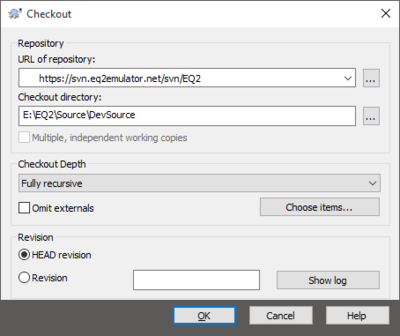
If this is your first visit to the SVN, you will be greeted by a Certificate validation failed popup. You will have to validate the certificate before you can proceed. Choose either the Accept the certificate or the Accept the certificate permanently. The latter option will not prompt you again to validate the certificate.
This is safe as long as the certificate is from MMO, MMOE, Phoenix, AZ, US.
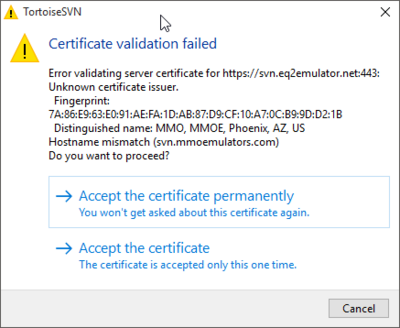
Once you are past that...
It's time to enter the login credentials.
SVN Access Username: anonymous (no password required)
Sit back and let the source code download.
Compiling the source
This guide is going to be using Visual Studio 2017 Community Edition.
- Open EQ2WorldVC10.sln in the win folder and run through the conversion wizard.
- In Visual Studio 2010, 2012, or 2013 right click the project and select properties
- Under the VC++ Directories: ensure the following are included (should be configured already) (the same x64 equivalents if compiling x64)
- Include directories
- $(SolutionDir)..\source\depends\mariadb-10.1.19\include;
- $(SolutionDir)..\source\depends\zlib\include
- Library directories
- $(SolutionDir)..\source\depends\mariadb-10.1.19\lib;
- $(SolutionDir)..\source\depends\zlib\lib
- Choose Debug or Release and the architecture you want to build for 32 or 64
Setting up the Server folder
Remember that Server folder you created way back at the beginning of this guide? Now we are going to use it.
Once you have navigated to your Server folder, create a new folder "worldserver" inside the Server folder. If you plan on using the minilogin (local login server) create another folder "loginserver" there as well.
We will need to move our compiled binaries over along with some other files. Let's go ahead and open our worldserver folder. To make things easier, open up a new window and navigate to C:\EQ2\Source\trunk\bin. Depending on the architecture you choose to build for will be the file you need to move to your worldserver folder. If you built for a 32-bit system then you will want to move EQ2World.exe. If you built for a 64-bit system then you will want to move EQ2World_x64.exe. Go ahead and move the file over to your worldserver folder now.
Head over to the structs folder located in C:\EQ2\Source\trunk\structs. We need to copy (not move) these files to our worldserver folder also.
- CommonStructs.xml
- ItemStructs.xml
- SpawnStructs.xml
- WorldStructs.xml
Time to copy config files to the worldserver folder. Locate the config files in C:\EQ2\Source\trunk\configs. There should be three files located there.
- log_config.xml
- LoginServer.ini
- world_db.ini
Move all three of these to the worldserver folder.
Once this is complete, let's get some content before we move to configuring our server.
Register Your Server
You need to register your server for the public login server to recognize it, providing you want to use the public login server.
In order to register your server you need a Login Account.
- 2. Complete the Login Account Registration and verify that your account was created successfully.
Once a login account is set up, login at the Account Management Page and navigate to the My Servers tab
Complete the form to register your game server with the public Login Server (You will need to provide the Login Account information from step 2 as well).
- 1 Login Account Name - This is your Login Account Name that you created previously.
- 2 Login Account Password - This is your Login Account Password that you created previously.
- 3 World Account Name - Account name that will be used by the server to login.
- 4 World Account Password - Password that will be used by the server to login.
- 5 Verify Password - Verify the password in 3.4 is correct - type it again
- 6 World Server Name - Name used to identify your server.
- 7 World Description - Brief description describing your world.
Database Server
Install latest MariaDB. If you are experienced with mysql you may run the commands directly instead of following the GUI setup (HeidiSQL).
Alternatively you can use MySQL. Any MySQL distribution at, or above, 5.0.27 should work fine. Visit MySQL archive to find 5.0.27 and above.
Download and install HeidiSQL, SQLYog or any MySQL (official) GUI Tools. This guide uses HeidiSQL. Interpret this for your own GUI if you do not use HeidiSQL.
- Once it is installed, connect to MySQL with username: root and the password for root. I think default is no password.
- Create a database by clicking Tools, Create Database.
- Enter a name for the database. I used eq2world as the name of the database that will house my world content.
It's wise to create a user to access the database besides root. Also you need to set a password for root if you have not already done so.
- Click on Tools, User-Manager and under credentials enter a username and password that you would like to use for your server. If you will be accessing the database from multiple computers then leave it %. Otherwise set it to either your computer's IP address or localhost.
- Click on the "All Privileges" checkbox and in the "Allow access to:" box, click on the eq2world database. Then click create.
- While in the User-Manager go ahead and change the password for root.
Configuring the server
Time to configure your server to use your database and loginserver.
Set up you world_db.ini to connect you server with a database.
- Open world_db.ini
- Edit the information in this file to match your host (localhost if it is being run from the same machine you are using), your MySQL username and password you created in HeidiSQL, and the name of the database (eq2world).
Save and close out of world_db.ini
Configure the LoginServer.ini to point your server at the public login server provided by Eq2emulator.net.
- Open LoginServer.ini
- Replace WORLD_NAME_HERE with the World Server Name you created in My Servers tab of the Account Management page.
- Replace EXTERNAL_IP_HERE with either localhost if you want to only allow yourself to login, or replace it with your external ip address. You can get this by browsing to http://www.whatismyip.com
- Add the username and password you used to register your server with in the My Servers tab of the Account Management page.
- Set, or check, the update server part of the ini.
- [UpdateServer]
- updateserveraddress=updates.eq2emulator.net
- updateserverport=9104
Save and close out of LoginServer.ini
Visit the minilogin page if you plan to use a local login server.
If you would like to know more about the config files, visit the log_config.ini page or the LoginServer.ini page.
==
Information below this line is still being added.
==
- 10. Start eq2world.exe. If everything starts correctly, your almost ready to play.
- 11. Edit the eq2_default.ini file in your EverQuest2 client directory and set the cl_ls_address to:
cl_ls_address eq2emulator.net
- 12. If everything was setup correctly, you should be able to run the EQ2 client and connect to your world. NOTE: Be sure to run EverQuest2.exe!!! If you run EQ2.exe, it will patch all your files including eq2_default.ini.
Getting Content
In your EQ2 directory you should have created a Content folder. If you didn't, do so now. Right click on the newly created Content folder and select SVN Checkout. It is the same process you used to get the source code, only this time we are going to get content instead. In the URL of repository enter this URL.
https://svn.eq2emulator.net/svn/eq2content
You can visit the SVN Page for source, content, and tools.
==
Original guide taken from EQ2Emu Forums posted by Razmalone
Origional Post Here
Updated here by theFoof 3/10/13
Updated again by Cynnar 1/10/18
Update is in progress
==
|

